
Affordable customer support software doesn’t need to drain your budget to handle tickets well. Plenty of teams overpay for bloated platforms packed with features they’ll never touch, while leaner tools cover email ticketing, live chat, and basic automation for a fraction of the price.
Stanford’s AI Index reported that AI-assisted support agents saw productivity gains of 14–15%. Even budget tools now ship with AI features that used to be locked behind enterprise tiers.
Below, you’ll find 15 picks sorted by what they do best, what they actually cost, and which team size they suit.
Key Points
- Stanford’s AI Index reported that AI-assisted support agents saw productivity gains of 14-15%, and even budget tools now ship with AI features that used to be locked behind enterprise tiers.
- Freshdesk’s free tier supports up to 10 agents with email ticketing, a knowledge base, and basic reporting, which is unusually generous compared to most competitors that cap free plans at 2-3 seats.
- Help Scout starts at $25/user/month and treats every ticket like an email conversation rather than a numbered queue, so your customers never see a ticket ID or feel like they’re talking to a bureaucracy.
- The breaking point for free plans usually hits when you outgrow the agent cap, you need SLA tracking to keep response times accountable, or your reporting is too thin to spot trends.
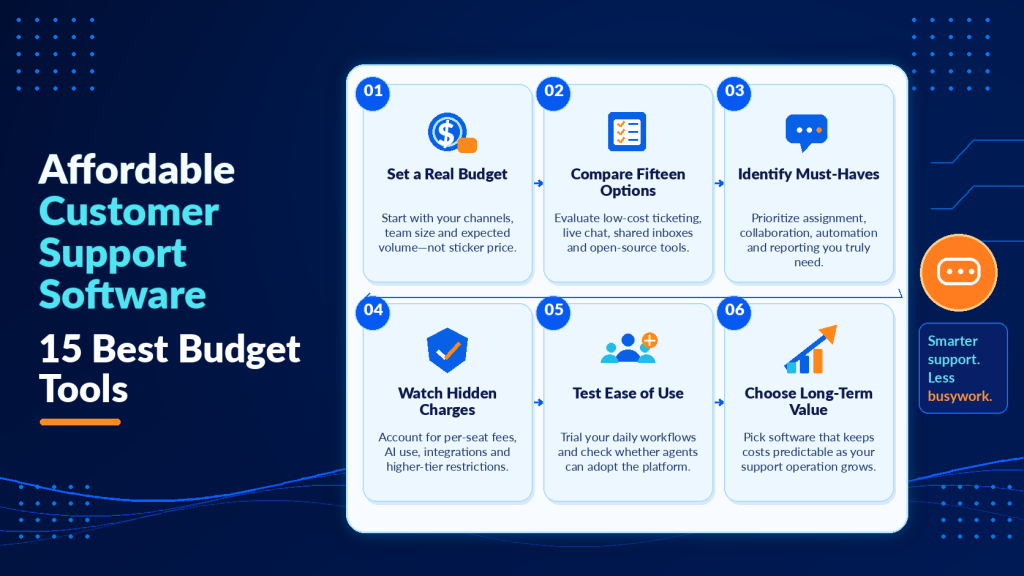
- Calculate total cost of ownership for 12 months, including every agent, add-on, and integration you’ll realistically need, because many budget tools cap automated workflows, charge for third-party app connections, or limit ticket history retention on lower plans.
What Is Affordable Customer Support Software?
Affordable customer support software gives you shared inboxes, ticket tracking, and basic automation at a price that fits small-team budgets.
Affordable is relative.
A plan priced at the higher end of the budget range works for a 200-person support org and stretches tight for a three-person startup.
So before the list, here’s a quick pricing framework to help you orient yourself.
Free tier usually caps at 2–3 agents or a limited ticket volume.
Good for testing, risky as a long-term plan because you’ll hit walls on reporting and automation fast.
These plans work well when you’re validating product-market fit and support volume remains unpredictable, but expect to migrate within six months if your product gains traction.
Budget tier runs from free to roughly the lower end of the pricing spectrum per agent monthly.
Most small teams should look here.
You get shared inboxes, basic SLA tracking, and often a simple knowledge base.
This range typically includes collision detection (so two agents don’t reply to the same ticket), canned responses to speed up common answers, and enough reporting to track first-response time and resolution rates.
Watch for caps on automation rules, because some vendors limit you to five or ten triggers on entry plans, which becomes restrictive once you start routing tickets by keyword, customer segment, or urgency.
Mid-range spans a moderate price band per agent each month.
This tier adds multi-channel support (phone, social media, in-app messaging), workflow automation with conditional logic, custom reporting dashboards, and integrations with CRM and billing systems.
Worth it once your volume consistently exceeds what a shared Gmail can handle and you need to track performance across channels or enforce SLAs with automatic escalations.
Many tools in this range also unlock AI features like sentiment analysis, suggested replies, and ticket categorization, which can reduce handle time by 15–20% according to industry research on customer service trends.
Watch for per-agent minimums (some vendors require at least three or five seats even if you only need two), setup and data migration fees, and automation caps that quietly double the bill when you exceed the included workflow limit.
We’ll flag those traps as we go through each tool.

15 Best Affordable Customer Support Software Worth Your Money
Each pick below targets a different use case.
Some are better for pure email ticketing; others shine with live chat or AI.
Prices reflect publicly listed rates as of this writing, but always verify directly since vendors change plans often.
1. Freshdesk: the free plan that actually works
Freshdesk’s free tier supports up to 10 agents with email ticketing, a knowledge base, and basic reporting.
That’s unusually generous.
Most competitors cap free plans at 2–3 seats.
The free plan includes ticket dispatch (manual assignment or round-robin), canned responses to handle repetitive questions, and a public-facing knowledge base with basic search.
You can track tickets by status, priority, and type, which covers the essentials for a small team handling under 100 tickets per week.
The mobile app works smoothly for triage on the go, and email-to-ticket conversion happens reliably without manual intervention.
Paid plans start at the Growth tier and unlock automation rules (like auto-assigning tickets based on keywords or customer properties), collision detection so two agents don’t reply to the same thread, custom ticket fields, and SLA management with breach alerts.
The jump from free to paid feels steep once you multiply it across a growing team, though.
At five agents, you’re looking at a moderate monthly cost depending on whether you pay annually, and that cost doubles when you hit ten seats.
If you’re between 5 and 10 agents, ride the free tier as long as you can.
Upgrade only when you need SLA management, advanced reporting that breaks down performance by agent or ticket type, or custom roles that restrict what different team members can see and edit.
The free tier’s reporting shows ticket volume and response times but won’t let you filter by custom fields or export data for deeper analysis.
Best for: startups and small teams that want room to grow before committing a dollar.
2. Zoho Desk
Zoho Desk starts at $14/agent/month (billed annually) and plugs directly into the broader Zoho ecosystem.
If your team already uses Zoho CRM, Zoho Projects, or Zoho Books, the integration alone saves hours of manual data shuffling each week.
Customer context flows automatically, so when a ticket arrives, you see the customer’s purchase history, open deals, and past support conversations in one sidebar without toggling between tabs.
That unified view cuts research time and helps you tailor responses to the customer’s actual relationship with your business.
The AI assistant, Zia, handles basic sentiment analysis (flagging frustrated customers so you can prioritize them), ticket tagging by topic, and response suggestions on higher plans.
On the entry tier (Standard at $14/agent/month), you get multi-channel ticketing (email, social media, live chat, phone), predefined SLA rules, and a self-service portal where customers can submit tickets and track status.
The Blueprint feature lets you map out ticket workflows visually, defining what happens at each stage and who gets notified, which is useful for teams that handle complex approval or escalation paths.
The downside?
The interface feels cluttered until you customize your views, which takes some upfront effort.
Out of the box, the dashboard shows every module and metric, and you’ll want to hide panels you don’t use and rearrange widgets to match your team’s priorities.
Expect to spend an hour or two configuring layouts and notification rules before the tool feels intuitive.
Zoho’s pricing stays competitive as you scale.
The Professional tier ($23/agent/month) adds advanced analytics, custom functions (serverless code snippets that extend functionality), and multi-brand support if you run several products under different names.
3. Help Scout for teams that hate ticket numbers
Help Scout treats every ticket like an email conversation.
Your customers never see a ticket ID or feel like they’re talking to a bureaucracy.
That design choice alone makes it popular with DTC brands and SaaS companies that prioritize a personal feel.
When a customer emails you, they receive replies that look like they came from a person’s inbox, complete with a signature and a conversational tone, rather than an automated system notification with a case number.
Plans start at $25/user/month (Standard plan, billed annually).
That’s at the top end of the “affordable” range, but it includes a knowledge base (called Docs), in-app messaging (Beacon), and a shared inbox with no per-conversation fees.
The knowledge base editor supports Markdown, custom CSS for branding, and basic SEO settings like meta descriptions and canonical URLs.
You can organize articles into collections, track which articles get the most views, and see where customers search but don’t find answers, which helps you fill content gaps.
Teams paying less elsewhere but buying a separate knowledge base tool often spend more total.
Help Scout bundles everything, and the Beacon widget lets you embed the knowledge base and contact form directly into your app or website, so customers can search for answers before opening a ticket.
Pair it with Beacon, their embedded widget, which lets customers search help docs before opening a ticket.
It deflects a surprising number of repetitive questions.
In practice, teams report 20–30% ticket deflection once they’ve built out a solid knowledge base and tuned search relevance, which means fewer interruptions for your agents and faster answers for customers who prefer self-service.
Help Scout’s collision detection is subtle but effective.
When an agent opens a conversation, others see a small indicator showing who’s viewing it, which prevents duplicate replies without locking the thread.
Internal notes let your team discuss a ticket privately, tag colleagues for input, and document decisions without the customer seeing any of that back-and-forth.
Saved replies (their version of canned responses) support placeholders for customer name, company, and custom fields, so you can personalize templates quickly.
The reporting dashboard tracks metrics like first response time, resolution time, replies per conversation, and customer satisfaction scores (collected via an optional post-resolution survey).
You can filter by team member, mailbox, or tag to see where bottlenecks form.
The Plus plan ($50/user/month) adds live chat, advanced permissions, and API access if you need to build custom integrations.
4. Tidio
Tidio combines live chat, chatbots, and a basic help desk in one widget.
The free plan covers up to 50 conversations per month across live chat and chatbot interactions combined, plus three active chatbot triggers.
That’s enough to test whether chat deflects tickets and how customers respond to automated flows.
Paid plans start around $29/month for the Communicator tier (pricing is per account, covering unlimited agents), making it one of the cheapest options for teams that want chatbot automation without paying enterprise rates.
The chatbot builder uses visual workflows, so you can map common question paths (like “Where’s my order?” or “How do I reset my password?”) without writing code.
You drag decision nodes, text responses, and actions (like collecting an email or handing off to a live agent) onto a canvas and connect them with arrows.
Pre-built templates for e-commerce, SaaS onboarding, and lead qualification help you launch faster.
The bot can pull data from your website (like product details or pricing) and insert it into responses dynamically.
Email ticketing exists but feels secondary to the chat experience.
Tickets created from email appear in the same inbox as chat conversations, but you don’t get advanced features like SLA tracking, custom ticket fields, or detailed reporting by channel.
If most of your support happens over email and you need robust ticket management, look elsewhere.
Tidio shines when chat is your primary channel and email is a fallback.
The Chatbots plan ($29/month) increases your conversation limit to 100 per month and adds five active bots.
The Tidio+ plan (starting at $394/month for 2,000 conversations) removes caps entirely and unlocks advanced features like A/B testing for bot flows, sentiment analysis, and priority support.
For small teams, the Communicator or Chatbots tier usually suffices.
Integrations with Shopify, WordPress, and Wix are straightforward.
You install a plugin or paste a snippet, and the widget appears on your site within minutes.
The mobile app lets agents respond to chats on the go, and push notifications ensure you don’t miss urgent messages.
5. Why Hiver works if you refuse to leave Gmail
Hiver layers shared inboxes, assignments, and SLA tracking directly inside Gmail.
There’s no new interface to learn.
Your team keeps working in the email client they already know, which eliminates the adoption friction that kills many tool rollouts.
When a customer email arrives in a shared inbox like support@yourcompany.com, any team member can claim it with one click, add internal notes visible only to the team, set a due date, and track status (open, pending, closed) without leaving Gmail.
Plans start at $19/user/month (Lite plan, billed annually).
The trade-off is that you’re locked into Google Workspace, and reporting stays basic compared to dedicated help desks.
You can see metrics like average response time, emails per agent, and SLA compliance, but you won’t get the deep segmentation or custom dashboards that tools like Zendesk or Freshdesk offer.
For teams that value simplicity over analytics depth, that’s a fair trade.
But if your biggest adoption risk is getting agents to actually use the tool, Hiver eliminates that friction entirely.
Agents don’t need to remember to check a separate app or learn a new keyboard shortcut system.
They open Gmail, see the shared inbox in their sidebar, and work through tickets the same way they handle personal email.
Collision detection prevents two agents from replying to the same thread.
When someone starts composing a reply, others see a banner indicating the email is being handled, which avoids the awkward situation where a customer receives two conflicting answers.
Notes let your team discuss a ticket privately without forwarding the whole chain or switching to Slack.
You can @mention a colleague to pull them into the conversation, attach internal files, and document the resolution for future reference.
The Pro plan ($49/user/month) adds analytics dashboards, collision alerts (notifications when someone else starts replying), and integrations with Slack, WhatsApp, and Asana.
The Elite plan ($79/user/month) includes advanced automations (like auto-assigning emails based on sender domain or subject keywords), custom SLA rules per inbox, and priority support.
Hiver works best for teams already living in Gmail who handle moderate ticket volume (under 500 per week) and don’t need phone support, live chat, or a public knowledge base.
If you need those channels, you’ll end up bolting on other tools, which defeats the simplicity advantage.
6. HubSpot Service Hub
HubSpot’s free CRM includes a basic ticketing system, live chat, and a shared inbox.
If you already run marketing or sales through HubSpot, adding service costs nothing initially.
The free tier supports unlimited users and up to one million contacts, which is more generous than most competitors.
You get a simple ticket pipeline (new, waiting, closed), email templates, and a basic knowledge base with up to five articles.
Live chat works through the HubSpot Conversations inbox, where you can route chats to specific team members and see the contact’s CRM record in the sidebar.
The catch is that paid Service Hub plans jump quickly.
The Starter tier ($20/seat/month for two seats minimum, so $40/month base) adds ticket automation, canned snippets, and reporting dashboards.
Advanced features like SLA management, customer feedback surveys, playbooks (guided workflows for agents), and customer portals (where customers can view their tickets and knowledge base articles) require the Professional tier at $100/seat/month, which becomes expensive fast.
A five-person support team on Professional costs a significant amount monthly, and that’s before adding Sales or Marketing Hub seats if your team needs CRM access.
It’s affordable at the entry level and expensive to scale.
Know your ceiling before you commit.
If you’re confident you’ll stay under three agents and don’t need SLAs or advanced automation, the free or Starter tier works.
If you expect to grow beyond five agents or need features like conversation routing, custom ticket properties, or goals tracking, budget for Professional from the start to avoid a painful mid-year migration.
The advantage of HubSpot is the unified data model.
Every ticket, chat, and email automatically links to the contact record, so you see the customer’s lifecycle stage, deal history, and past interactions in one place.
If your sales team closes a deal and the customer later opens a support ticket, the agent sees the original sales conversation and can reference specifics without asking the customer to repeat themselves.
That continuity improves customer experience and reduces handle time.
Businesses exploring how SaaS companies pair support tools with newsletters to reduce churn and drive expansion revenue will find HubSpot’s ecosystem especially useful here.
You can trigger email sequences based on support activity (like sending a tutorial after a ticket is resolved or a check-in email if a customer hasn’t logged in for 30 days), and track how those touchpoints affect retention and upsell rates.
HubSpot’s reporting spans the entire customer journey.
You can build dashboards that show how support ticket volume correlates with product usage, which features generate the most questions, and how fast resolution affects renewal rates.
That cross-functional visibility is rare in budget tools and justifies the higher cost for teams that need it.
7. JitBit Helpdesk
JitBit targets small teams that want a clean, fast ticket interface without the bloat.
Cloud plans start at $29/month for one agent (Starter plan), then $69/month for three agents, and $129/month for six agents.
The pricing jumps feel steep, but each tier includes unlimited tickets, email integration, a knowledge base, and mobile apps.
The self-hosted option (a one-time payment starting around a few thousand dollars for up to ten agents) appeals to teams that want to own their data, avoid recurring per-agent fees entirely, and have the technical capacity to manage a Windows or Linux server.
The automation engine handles conditional triggers and escalations well.
You can create rules like “If a ticket contains the word ‘urgent’ and hasn’t been replied to in one hour, escalate to the manager and send a Slack notification.”
The rule builder uses plain-language conditions (contains, does not contain, is greater than, is less than) and actions (assign, tag, send email, post to webhook), so you don’t need to write code but still get powerful routing logic.
Email parsing is reliable.
JitBit reads incoming emails, strips signatures and reply chains automatically, and creates clean ticket threads.
It handles attachments smoothly, preserves formatting, and lets you reply to tickets directly from email if you prefer working in your inbox rather than the web interface.
The mobile app covers basic triage when you’re away from your desk.
You can view tickets, reply with canned responses, change status, and reassign to another agent.
The knowledge base editor is straightforward.
You write articles in a WYSIWYG editor, organize them into categories, and publish.
Articles support attachments, embedded images, and basic formatting.
The search function works adequately but lacks the relevance tuning and analytics you get in dedicated knowledge base tools like Helpjuice or Document360.
JitBit’s reporting covers the essentials.
Tickets by status, average response time, tickets per agent, and customer satisfaction scores (collected via an optional post-resolution survey).
You can export reports to CSV for further analysis in Excel or Google Sheets.
The interface feels dated compared to newer tools, with a utilitarian design that prioritizes function over aesthetics, but it’s fast and doesn’t require much training.
The self-hosted version gives you full control over data, customization, and integrations.
You can modify the database schema, add custom fields, and build integrations using the REST API.
That flexibility matters to teams in regulated industries (healthcare, finance, government) that can’t store customer data in third-party clouds or need to meet specific compliance requirements.
8. LiveAgent: multichannel on a budget
LiveAgent packs email, live chat, social media, and even a built-in call center into plans starting at $15/agent/month (Small plan, billed annually).
That breadth is unusual at this price.
Most competitors charge extra for phone support or require a third-party integration like Aircall or Dialpad, which adds cost per user monthly.
LiveAgent includes a softphone that lets agents make and receive calls directly in the app, with call recording, IVR (interactive voice response for routing callers), and call queuing.
You can buy phone numbers from LiveAgent or port existing numbers.
The Small plan includes one email address, one chat button, one call center number, and basic ticket management.
The Medium plan ($35/agent/month) adds unlimited email addresses and chat buttons, Facebook and Twitter integration, and time tracking.
The Large plan ($59/agent/month) unlocks video calls, advanced automation, and real-time visitor monitoring (so you can see who’s on your website and proactively start a chat).
The UI looks dated compared to newer tools.
The layout uses a lot of gray, small fonts, and dense information displays that feel like older enterprise software rather than a modern SaaS app.
If design polish matters to your team’s morale and you believe aesthetics affect adoption, that’s a real consideration.
Some agents will adapt fine; others will complain daily about how the interface looks.
But feature-per-dollar, LiveAgent is hard to beat for teams juggling four or more support channels.
You get a universal inbox where emails, chats, calls, social media messages, and contact form submissions all appear in one queue.
Agents can switch between channels without changing tools, and customer history follows them across every interaction.
The ticket detail view shows the full conversation timeline, including which agent handled each message and how long each response took.
The gamification features (agent leaderboards, performance badges, and achievement unlocks based on metrics like first response time or customer satisfaction) can motivate some teams and annoy others, so test that dynamic during your trial.
Some support teams thrive on friendly competition and public recognition; others find it patronizing or stressful.
You can disable gamification entirely if it doesn’t fit your culture.
LiveAgent’s reporting covers standard metrics (tickets by channel, response times, resolution rates, agent performance) and lets you schedule reports to email automatically.
The dashboard is customizable, so you can pin the widgets you check daily and hide the rest.
Integrations with Slack, Shopify, WooCommerce, and Mailchimp work reliably, and the API documentation is thorough if you need to build custom connections.
9. HelpCrunch
HelpCrunch bundles a knowledge base, live chat, email marketing, and a help desk starting at $12/team member/month (Basic plan, billed annually).
It’s a good fit for early-stage companies that can’t afford separate tools for each function.
The live chat widget supports automated greetings, proactive messages based on visitor behavior (like time on page or pages viewed), and chat routing to specific agents based on skills or availability.
The knowledge base editor is clean and supports categories, articles, and embedded images or videos.
You can restrict articles to logged-in users if you need a private help center for customers only.
The chatbot builder handles simple FAQ routing.
You create decision trees where the bot asks a question, the customer picks an option, and the bot either answers or routes to a human agent.
It’s less sophisticated than Tidio or Intercom but sufficient for deflecting common questions like “What are your hours?” or “How do I reset my password?”
The email marketing piece is basic but functional enough to replace a standalone tool for low-volume senders.
You can create campaigns, segment by customer properties (like plan type or signup date), and track opens and clicks.
The editor uses drag-and-drop blocks for text, images, buttons, and dividers.
You won’t get the advanced automation or A/B testing that Mailchimp or ConvertKit offer, but for sending occasional product updates or onboarding sequences, it works.
Reporting leans light.
You can see chat volume, average response time, and customer satisfaction scores, but you won’t get the granular breakdowns or custom dashboards that dedicated help desks provide.
If you need deep analytics (like performance by time of day, ticket deflection rates, or agent utilization), you’ll outgrow HelpCrunch quickly.
The Pro plan ($20/team member/month) adds pop-ups for lead capture, advanced chat triggers, and integrations with Zapier, Salesforce, and HubSpot.
The Unlimited plan (custom pricing) removes all limits on contacts, messages, and knowledge base articles, and adds priority support and a dedicated account manager.
HelpCrunch works best for small teams (under ten people) that need a Swiss Army knife tool and can tolerate limitations in each individual function.
If you need best-in-class email marketing, you’ll eventually move to a dedicated platform.
Same for the help desk.
But as a starter kit that gets you up and running fast without juggling multiple subscriptions, it’s solid.
10. Groove
Built specifically for teams under 50 agents.
Plans start at $16/user/month (Starter plan, billed annually) with a shared inbox, knowledge base, and reporting.
Groove’s main selling point is simplicity.
There’s no feature you’ll configure once and never touch again.
Everything in the interface earns its space, and the learning curve is gentle enough that new agents can start handling tickets within an hour of onboarding.
The shared inbox works like email.
Tickets appear as conversations, and agents reply using a familiar compose window.
You can assign tickets, add private notes, tag for categorization, and set due dates.
The collision detection is subtle.
When someone opens a ticket, others see a small indicator, which prevents duplicate replies without locking anyone out.
Canned responses (called “templates” in Groove) support placeholders for customer name, company, and custom fields, so you can personalize quickly.
The knowledge base editor is clean and supports basic SEO settings (meta title, description, and URL slug).
You can organize articles into categories and collections, track views, and see which articles get the most upvotes or downvotes from readers.
The search function is straightforward and works well for knowledge bases under 200 articles.
Beyond that, you might want a more robust tool with advanced search tuning and content recommendations.
Reporting covers the core metrics.
First response time, resolution time, tickets per agent, and customer satisfaction scores (collected via an optional post-resolution survey).
You can filter by date range, agent, or tag, and export data to CSV.
The dashboard shows trends over time, so you can spot if response times are creeping up or if certain agents are handling disproportionate loads.
The Standard plan ($24/user/month) adds custom fields, advanced reporting, and integrations with Slack, Salesforce, and Zapier.
The Plus plan ($36/user/month) includes live chat, multiple brands (if you support several products under different names), and API access for custom integrations.
Groove lacks phone support and advanced workflow automation, so if those are must-haves, look higher up the list.
The automation you do get is basic.
Auto-assign by round-robin or keyword, auto-tag based on subject line, and auto-close after a set number of days without reply.
That covers the essentials but won’t handle complex routing logic or multi-step escalations.
Teams that value a calm, focused interface over feature density tend to love Groove.
It doesn’t try to do everything, and that restraint makes it easier to use daily without feeling overwhelmed.

11. osTicket: the open-source card
osTicket is free, open-source, and self-hosted.
You get email ticketing, custom forms, an agent dashboard, and a knowledge base.
No per-agent fees ever.
The software is mature (first released in 2004) and actively maintained, with a large community contributing plugins and answering questions in forums.
The cost shifts to setup and maintenance.
You need someone comfortable with PHP, MySQL, and server management (Linux or Windows).
Initial installation takes a few hours if you’re experienced, longer if you’re learning as you go.
You’ll need to configure email piping (so incoming emails create tickets automatically), set up SSL certificates for secure access, and tune performance settings as your ticket volume grows.
For teams with a technical co-founder or a DevOps person already on staff, that’s a non-issue.
The time investment is front-loaded, and once the system is running, maintenance is minimal (mostly software updates and database backups).
For everyone else, the hidden labor cost can exceed what you’d pay for a hosted tool.
If you’re billing your time at a reasonable hourly rate and spend 20 hours on setup and troubleshooting, you’ve spent a significant amount in opportunity cost, which buys you two years of a budget hosted tool.
Be honest about your team’s bandwidth before choosing this route.
If you have spare technical capacity and value data ownership, osTicket is a strong pick.
If you’re stretched thin and need something working today, pay for a hosted tool and spend your time on customers instead of server configuration.
The community forum is active, and you’ll find plugins for Slack notifications, LDAP authentication (for integrating with corporate directories), and common CRM integrations.
The plugin architecture is well-documented, so if you need custom functionality, you can build it or hire a developer to do it for a few hundred dollars.
osTicket’s interface is functional but dated.
It won’t win design awards, but it’s fast and gets the job done.
Agents can view tickets, reply, add internal notes, change status, and reassign.
Customers can submit tickets through a web portal, track status, and reply to updates.
The knowledge base supports categories and articles, and you can restrict visibility by user role.
Reporting is basic.
You can see ticket counts by status, agent, department, and time period, and export to CSV.
If you need advanced analytics, you’ll query the MySQL database directly or use a business intelligence tool like Metabase or Redash to build custom dashboards.
12. Kayako
Kayako focuses on customer journey mapping alongside traditional ticketing.
You see a timeline of every interaction a customer has had across channels (email, chat, social, phone) before you reply.
That context helps you understand whether this is a first-time question or the fifth time the customer has contacted you about the same issue, which changes how you respond.
The timeline also shows customer activity on your website or app (if you integrate Kayako’s tracking script), so you can see what they were trying to do when they got stuck.
Plans were recently restructured, so check their pricing page directly.
Historically, entry-level plans hovered in the range of budget to mid-tier tools, and the platform targets teams that need more than basic ticketing but less than enterprise complexity.
The unified inbox pulls in email, chat, social, and phone into one view.
You can filter by channel, status, or assigned agent, and switch between tickets without changing screens.
Collaboration tools let your team tag colleagues in internal notes, leave comments, and escalate without forwarding threads or switching to Slack.
The @mention system works smoothly, and notifications ensure the right person sees the message.
Kayako’s automation handles common workflows like auto-assigning tickets based on keywords, escalating unresolved tickets after a set time, and sending follow-up surveys after resolution.
The rule builder uses conditions (if ticket contains X, if customer has property Y) and actions (assign, tag, send email, post to webhook), similar to other tools on this list.
The knowledge base editor supports categories, articles, and embedded media.
You can track article views, upvotes, and downvotes to see what’s helpful and what needs revision.
The search function is adequate for knowledge bases under 500 articles.
Reporting covers standard metrics (response time, resolution time, tickets by channel, agent performance) and lets you build custom reports by combining filters.
You can schedule reports to email automatically, which is useful for weekly or monthly reviews with your team.
Kayako works best for teams that handle complex, multi-touch support issues where context matters.
If your tickets are mostly one-off questions that resolve in a single reply, the journey mapping features are overkill.
But if you’re supporting enterprise customers with long sales cycles and ongoing relationships, seeing the full history helps you deliver better service.
13. Spiceworks: completely free (with ads)
Spiceworks offers a free cloud help desk funded by ads.
It’s designed for IT support rather than customer-facing teams, but small businesses use it for both.
The tool includes ticket tracking, a knowledge base, asset management (for tracking hardware and software), and a user portal where employees or customers can submit tickets and check status.
No agent limits.
No ticket caps.
No credit card required.
Ever.
The trade-off is banner ads in the interface and limited customization.
The ads are for IT products (software, hardware, services) and appear in the sidebar and occasionally in the ticket view.
They’re not intrusive enough to block functionality, but they’re always visible, which some teams find distracting.
If you need basic ticket tracking and your budget is literally zero, Spiceworks removes every financial barrier.
The knowledge base and asset management features are solid for internal IT workflows.
You can document solutions to common problems, track which computers have which software installed, and generate reports on hardware lifecycle.
Customer-facing teams may find the branding and ad presence awkward, especially if you’re sharing the portal with customers who see ads for products unrelated to your business.
Spiceworks’ ticket system covers the essentials.
Email-to-ticket conversion, assignments, status tracking, priorities, and due dates.
You can create custom ticket types (like “incident,” “request,” “problem”) and custom fields to capture specific information.
The reporting dashboard shows ticket volume, average resolution time, and tickets per technician.
The community forum is large and active, with IT professionals sharing tips, troubleshooting advice, and custom scripts.
If you run into a problem, you’ll likely find someone who’s solved it already.
Spiceworks works best for internal IT teams at small businesses (under 100 employees) that need a free, functional help desk and don’t mind ads.
For customer-facing support, the branding and ad presence make it a harder sell unless you’re truly budget-constrained and willing to accept the trade-offs.
14. UVdesk
Another open-source option, UVdesk offers a community edition that’s free and a hosted version starting around $22/month for two agents.
It supports email ticketing, a knowledge base, and e-commerce integrations with Shopify, Magento, WooCommerce, and PrestaShop.
That e-commerce focus makes it a stronger pick for online stores than general-purpose alternatives like osTicket.
The Shopify integration, for example, pulls order details directly into the ticket view, so agents can see what the customer bought, when it shipped, and whether they’ve contacted support before, all without leaving the help desk.
The workflow automation handles order-related triggers well, like auto-tagging tickets that mention “refund” or “shipping delay,” routing high-value customers to senior agents, or escalating unresolved tickets after 24 hours.
You can create rules based on order value, customer lifetime value, or product category, which helps you prioritize the tickets that matter most to your business.
The community edition requires self-hosting (similar to osTicket), so you need technical skills to install and maintain it.
The hosted version removes that burden and includes automatic updates, backups, and support.
Pricing scales with agent count.
Two agents for $22/month, five agents for $49/month, and ten agents for $89/month (all billed annually).
The interface is clean and modern compared to older open-source tools.
The ticket view shows the conversation thread, customer details, and order history in one screen.
Agents can reply, add internal notes, change status, and reassign without navigating away.
The mobile app covers basic triage and lets you reply to urgent tickets on the go.
The knowledge base editor supports categories, articles, and embedded images or videos.
You can organize articles by product or topic, and the search function works adequately for knowledge bases under 300 articles.
The customer portal lets customers submit tickets, track status, and search the knowledge base before contacting support.
Reporting covers ticket volume, response times, resolution rates, and agent performance.
You can filter by date range, product, or customer segment, and export data to CSV for further analysis.
The dashboard is customizable, so you can pin the metrics you check daily.
UVdesk works best for e-commerce businesses that need tight integration with their store platform and want the option to self-host if they grow large enough to justify the technical investment.
15. When support meets outreach
Support workflows don’t always stay reactive.
Teams that blend proactive outreach with customer support, like sending onboarding sequences, re-engagement campaigns, or check-ins after a ticket is resolved, need tools that handle both sides.
Traditional help desks focus on inbound tickets and treat outbound email as an afterthought, which forces you to juggle separate tools for support and outreach.
Mailshake fills that gap with email outreach automation, built-in deliverability tools, and an AI writer that helps reps create personalized messages fast.
You can build sequences that trigger based on support activity (like sending a tutorial after a ticket is resolved or a check-in email if a customer hasn’t logged in for 30 days), track opens and replies, and measure how those touchpoints affect retention and upsell rates.
The AI writer analyzes your past emails and suggests personalized openers, subject lines, and calls to action based on what’s worked before.
You can generate variations for A/B testing, rewrite drafts to match your brand voice, and adapt templates for different customer segments.
That speeds up the writing process and helps newer reps sound as polished as senior team members.
Mailshake’s deliverability tools include domain health monitoring, spam score checking, and email warmup (gradually increasing send volume to build sender reputation).
Those features matter because even the best outreach message fails if it lands in spam.
The platform integrates with Gmail, Outlook, and custom SMTP servers, and tracks deliverability metrics so you can spot problems before they tank your campaigns.
If your support team also handles customer success outreach (like quarterly business reviews, feature adoption campaigns, or renewal reminders), consolidating into one platform cuts costs and context-switching.
You avoid paying for both a help desk and an outreach tool, and your team spends less time toggling between tabs and more time helping customers.
Mailshake works best for teams where support and customer success overlap, and where proactive outreach is part of the retention strategy.
If your support is purely reactive and you never send outbound campaigns, a traditional help desk makes more sense.
But if you’re blending inbound and outbound, Mailshake’s hybrid approach saves time and money.

Free vs. paid: when should you actually upgrade?
Free plans work until they don’t.
The breaking point usually hits when one of three things happens.
You outgrow the agent cap, you need SLA tracking to keep response times accountable, or your reporting is too thin to spot trends.
Some teams also hit limits on ticket history retention (free plans often delete or archive tickets after a reader-relative timeframe), automation rules (capped at five or ten triggers), or integrations (free tiers rarely include API access or third-party app connections).
A common mistake is upgrading too early.
If you’re handling 30 tickets a day with three agents, a free Freshdesk or Spiceworks plan probably covers you.
The tools work fine at that volume, and you’re not missing features that would materially improve your workflow.
Jumping to a paid plan “just in case” burns budget you could spend on hiring another agent or investing in customer education content that deflects tickets.
On the flip side, staying on a free plan too long creates invisible costs.
Agents waste time on manual workarounds that automation would eliminate.
Performance data gets tracked in spreadsheets instead of dashboards, which means you’re flying blind on metrics like first response time, resolution rate, and agent utilization.
Customer satisfaction suffers because you can’t enforce SLAs or route urgent tickets to senior agents automatically.
Those inefficiencies compound quietly.
An agent spending 15 minutes a day on manual tasks that automation could handle loses 90 hours per year, which is more than two full work weeks.
Multiply that across a team of five, and you’re losing 450 hours annually to avoidable friction.
Teams that audit their communication tool performance regularly catch the upgrade signal before it becomes a crisis.
Set a quarterly reminder to review your help desk metrics.
Ticket volume trend, agent utilization, automation rule usage, and reporting gaps.
If you’re consistently hitting 80% of your plan’s caps or spending significant time on workarounds, budget for the next tier now rather than scrambling mid-quarter when you hit a hard limit.
Look at your ticket volume trend over the past three months.
If it’s climbing steadily and you’re already at 80% of your plan’s cap (whether that’s agent seats, ticket volume, or automation rules), budget for the next tier now rather than scrambling mid-quarter.
Most tools let you upgrade mid-cycle and prorate the difference, but planning ahead gives you time to evaluate whether your current tool still fits or whether you should migrate to a different platform entirely.
Another signal is agent complaints.
If your team is consistently frustrated by missing features (like better search, more automation, or integrations with tools they use daily), that friction affects morale and productivity.
A moderate monthly upgrade per agent that eliminates daily annoyances often pays for itself in improved efficiency and retention.
The hidden fees that make “cheap” software expensive
A plan priced low per agent sounds great until you discover automation workflows cost extra, the API access you need lives on a higher tier, and onboarding runs a few hundred dollars.
Here’s what to scrutinize before you sign.
Automation caps. Many budget tools cap the number of automated workflows or trigger conditions on lower plans.
Freshdesk’s free tier, for example, includes zero automation.
The Growth tier gives you ten automation rules, which sounds generous until you realize that each rule counts separately, so routing tickets by keyword, auto-tagging by subject line, and escalating overdue tickets consumes three rules.
If you rely on routing rules to triage tickets by keyword, customer segment, or urgency, confirm those limits upfront and calculate whether the included quota covers your actual needs.
Integration fees. Some vendors charge for connecting third-party apps beyond a basic set.
Zendesk, for example, includes native integrations with Slack and Jira on all plans but charges for premium integrations or requires a higher tier for API access.
Integrating your CRM, billing system, analytics platform, or project management tool might push you into a pricier tier.
Check the integrations page for every tool you’re evaluating and confirm that the apps you need are included on the plan you’re considering.
Ticket history retention. Ticket history retention varies, and losing access to old conversations after 6 months defeats the purpose of a help desk.
Some free plans delete tickets after a reader-relative timeframe; others archive them but charge to retrieve them.
Check whether your plan archives or deletes past tickets, and if archived tickets count against your storage quota.
If you need to reference old conversations for compliance, training, or trend analysis, confirm that your plan retains them indefinitely or at least for the period you need.
Support for the support tool. Ironic, but some budget tools only offer email support for their own product, and waiting 48 hours for a reply hurts if your help desk goes down.
Check what support channels your plan includes (email, chat, phone) and what the response time SLA is.
Some vendors reserve phone support for higher tiers, which is fine if your team is technical and can troubleshoot most issues independently, but risky if you need hand-holding during setup or when something breaks.
Per-conversation or per-ticket fees. A few tools (especially live chat platforms) charge per conversation rather than per agent, which can get expensive fast if your volume is high.
Intercom, for example, charges based on active users and conversations, which makes budgeting tricky.
If you’re evaluating a tool with usage-based pricing, model your costs at 1.5x and 2x your current volume to see how the bill scales.
Calculate total cost of ownership for 12 months.
Include every agent, add-on, and integration you’ll realistically need.
The cheapest sticker price rarely wins that comparison.
A tool that costs a low amount per agent monthly but requires add-ons for automation, integrations, and extra ticket history ends up costing more than a tool that bundles everything at a moderate price per agent monthly.
Build a simple spreadsheet with columns for base cost, per-agent fees, required add-ons, estimated overage charges (if the tool caps tickets or conversations), and annual contract discounts.
Run the math for your expected headcount at month 6 and month 12, because most teams grow faster than they budget for.
If you’re hiring two agents in Q2 and another three in Q4, your December bill will be significantly higher than your January bill, and you need to plan for that.
Also factor in migration costs if you’re switching from another tool.
Data export, cleanup, import, and agent training take time.
If you’re paying an agency or consultant to handle the migration, that’s an additional upfront cost.
If you’re doing it in-house, estimate the hours and multiply by your team’s hourly rate to get the true cost.
How to switch to a budget tool without wrecking your workflow
Migration anxiety keeps teams on overpriced platforms longer than they should stay.
The fear is real but manageable if you plan the transition in phases.
Start by exporting your ticket history and knowledge base content from your current tool.
Most platforms offer CSV or API exports.
Download everything.
Tickets, customer data, attachments, knowledge base articles, and any custom fields or tags you’ve created.
Store the export files somewhere safe (like Google Drive or Dropbox) in case you need to reference them later or re-import if something goes wrong.
Clean the data before you import it.
Remove duplicate tickets, outdated articles, and test data you created during onboarding.
The cleaner your data going in, the less cleanup you’ll do later.
If your current tool has custom fields that don’t map directly to the new tool, decide how to handle them.
Either create equivalent fields in the new tool or document the mapping so you don’t lose context.
Run the new tool in parallel for two weeks, routing a percentage of tickets through it while keeping the old system active.
Start with 10–20% of your volume (like tickets from a specific product or customer segment) and gradually increase as your team gets comfortable.
This parallel run lets you catch issues (like email parsing problems, broken integrations, or confusing workflows) without risking your entire support operation.
Train agents on the new interface before you flip the switch fully.
A 30-minute walkthrough plus a cheat sheet covering the five most common workflows (reply to a ticket, add a note, reassign, change status, use a canned response) prevents most day-one confusion.
Record the training session so new hires can watch it later.
Set up a Slack channel or shared doc where agents can ask questions and share tips during the first week.
Companies that approach tool transitions the way a small startup methodically tests new systems tend to avoid the messy all-at-once cutover that tanks response times.
They test in staging, gather feedback, iterate, and only go live when the new system is proven.
That discipline pays off in smoother transitions and fewer support tickets about the support tool.
Set a hard deadline for decommissioning the old tool.
Without one, you’ll pay for two platforms indefinitely.
Pick a date two to four weeks after the parallel run ends, communicate it clearly to your team, and stick to it.
On that date, turn off email forwarding to the old tool, archive the account, and cancel the subscription.
Keep the data export for at least a year in case you need to reference old tickets.
Assign one person to own the migration timeline, check data integrity after import, and field agent questions during the first week.
That single point of contact prevents confusion and keeps the project moving.
The owner doesn’t need to be technical (though it helps), but they do need to be organized, responsive, and empowered to make decisions when issues arise.
After the migration, run a retrospective with your team.
What went well?
What was confusing?
What would you do differently next time?
Document the lessons learned so your next tool migration (and there will be one eventually) goes even smoother.
Frequently asked questions
What are some cheaper alternatives to Zendesk?
Cheaper alternatives to Zendesk often include lighter-weight help desks, shared inbox tools, and open-source options, depending on whether you need multichannel support, a knowledge base, or self-hosting.
When comparing, focus on total cost of ownership, including required add-ons like automation, integrations, and data retention.
How can I chat with customer support?
Most companies offer live chat through a website widget, in-app messenger, or help center page, usually during posted support hours.
If live chat is unavailable, look for email or ticket submission options and include key details like your account email, order ID, and screenshots to speed up resolution.
What are some common tools used in customer service?
Common customer service tools include ticketing systems, shared inboxes, live chat and chatbot widgets, knowledge bases, and analytics or QA reporting.
Many teams also rely on CRM integrations and workflow automation to route issues, track SLAs, and reduce manual follow-ups.
What is the 10/5/3 rule in customer service?
The 10/5/3 rule is a service guideline that encourages proactive engagement.
Acknowledge a customer when you are within 10 feet, smile or make friendly eye contact within 5 feet, and greet them within 3 feet.
It is mainly used in in-person service settings to reduce friction and make customers feel seen quickly.
How do I estimate the true 12-month cost of a budget support tool before buying?
Build a simple worksheet that includes expected agent seats, required channels (chat, phone, social), and any must-have capabilities like API access, automation, and reporting.
Then add likely extras such as onboarding, integration fees, and higher-tier upgrades you will need once volume grows.
What security and compliance questions should I ask before choosing a low-cost help desk?
Ask where data is hosted, what encryption is used (in transit and at rest), how access controls and audit logs work, and what retention and deletion options you have.
If you operate in regulated environments, confirm support for requirements like SSO, role-based permissions, and relevant certifications or DPAs before migrating customer conversations.
How do I run a fair side-by-side trial when comparing multiple support tools?
Use the same test inbox, a consistent set of real ticket types, and identical routing rules across each tool for a short, fixed trial period.
Test the workflows your team uses every day, including ticket assignment, automated responses, escalations, and reporting. Track first-response times, resolution times, agent effort, and any issues with integrations or automation.
Don’t just compare which platform has the most features. Look at how easily your agents can complete routine tasks and how much manual work each tool eliminates.
Finally, calculate the total cost of each platform using your expected ticket volume and team size, including any add-ons or usage fees. The best option is the one that handles your actual support workload reliably without introducing unnecessary complexity or costs.
Reduce Customer Support Costs Without Sacrificing Quality
Affordable customer support software isn’t just about paying less per agent. It’s about getting more out of your existing team without adding unnecessary subscriptions, complicated workflows, or expensive upgrades.
Helploom combines ticket management, live chat, and AI-powered customer support in one platform. Its AI agents can handle repetitive customer questions automatically, helping reduce ticket volume and freeing human agents to focus on more complex issues. For growing businesses, that means less time spent on routine requests and less pressure to expand the support team every time customer inquiries increase.
Looking for a more cost-effective way to manage customer support? Explore Helploom and see how AI automation and streamlined ticket management can help you deliver responsive support while keeping operational costs under control.