
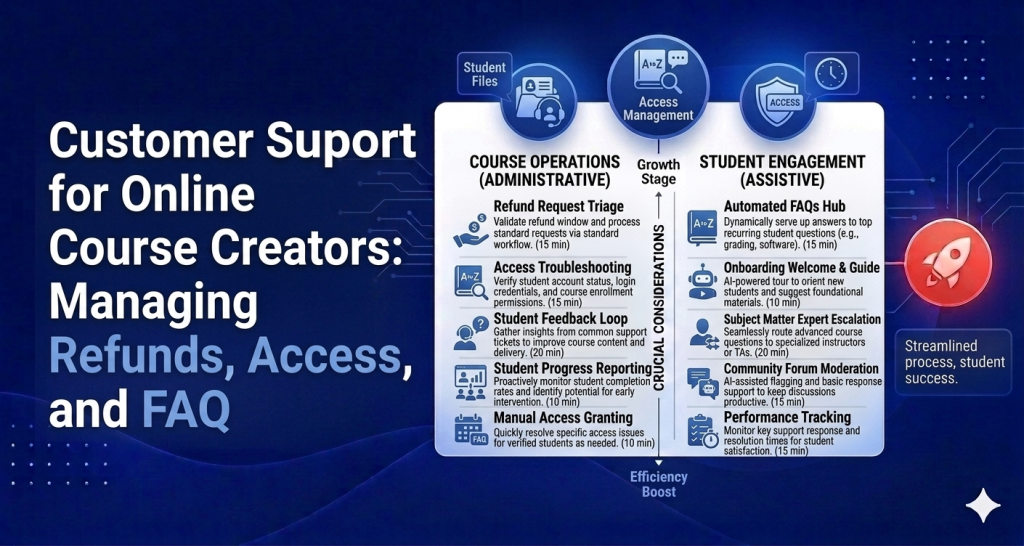
If you’re selling online courses, you already know the three tickets that eat your week: refund requests, access problems, and questions your sales page already answers. These aren’t random — they’re predictable, repetitive, and collectively they can consume 10 or more hours a week that you’d rather spend creating content or making sales.
This guide is for course creators who want to handle customer support for online course creators in a way that’s fast, consistent, and doesn’t require a full-time support hire.
Why Course Creator Support Is Uniquely Challenging
Selling courses isn’t like selling a physical product. When someone buys a t-shirt and it doesn’t fit, the problem is obvious and the resolution is clear. When someone buys a course, the problems are fuzzier — and they tend to arrive at inconvenient times.
The product is async. Students work through your content on their own schedule — evenings, weekends, 2am when they can’t sleep. That means support requests land outside business hours, and a slow response can break momentum right when a student was finally making progress.
Students are global. If you’re selling to anyone with an internet connection, you have students in time zones 12 hours away from yours. A student in Singapore who can’t log in at 9pm their time isn’t going to wait 16 hours for your Monday morning reply.
Refund sensitivity is high. Digital products have a complicated relationship with refunds. Most platforms give students a window — 30 days is common. But how you handle refund requests has a direct effect on your reputation, especially if students talk to each other in a community or on social media.
Platform complexity is real. Whether you’re on Kajabi, Teachable, Thinkific, or Podia, there are layers of accounts, integrations, and access logic that your students don’t understand — and that create support tickets when something breaks or when they don’t know where to look.
The 3 Core Support Scenarios Every Course Creator Faces
1. Refund Requests
Refund requests are the tickets most course creators dread, but they don’t have to be a crisis. The goal isn’t to win every refund argument — it’s to handle each one consistently, quickly, and in a way that protects both your relationship with the student and your business.
Write your refund policy down and stick to it. Not a vague “30-day satisfaction guarantee” but a specific document: what qualifies, what doesn’t, how to request, how long processing takes. When the policy is clear, your response to a refund request is just applying the policy — not making a judgment call every time.
Create a canned response for refund requests. Your reply should acknowledge the request, name the policy, confirm next steps, and give a timeline. This takes the emotion out of the exchange. A student who feels heard and gets a clear answer is far less likely to escalate or dispute the charge.
The revenue-saving move most course creators skip: before processing a refund automatically, offer an alternative. A different course, a payment pause, a one-on-one call. Some students request refunds because they got stuck, not because they’re unhappy with the product. One check-in can save the sale.
2. Access Issues
“I can’t log in.” “My video won’t play.” “I bought the course but I don’t see it in my account.” These are the highest-urgency tickets you’ll get, because a student who can’t access what they paid for is a student who’s about to question whether they made the right purchase.
Speed matters here more than anywhere else. A 4-hour response to an access issue is too slow. This is where automated support earns its keep — an AI chatbot trained on your platform’s common access troubleshooting steps can resolve a large share of these tickets within seconds, at any hour.
Common access issues and how to triage them:
Wrong email: student used a different email at checkout than they used to create their account. Fix: link the accounts or send a login reminder to the purchase email.
Payment processing delay: access wasn’t granted because payment is still processing. Fix: manual enrollment or a wait time explanation with a specific resolution time.
Video playback issues: usually browser, VPN, or firewall related. Fix: a help center article walking through browser troubleshooting steps.
Mobile app vs. browser confusion: students expect a mobile app and get frustrated when they have to use a browser. Fix: a clear “how to access on mobile” guide.
If you document the resolution for each access issue type, you can build a help center that handles most of them without any human involvement.
3. Pre-Purchase and FAQ Questions
“Does this course include lifetime access?” “Is this for beginners?” “Will this work if I’m in Australia?” These questions come from real buyers doing due diligence. But they shouldn’t be landing in your inbox.
Every question you answer individually in an email or DM is a question that belongs in your help center or on your sales page. The math is simple: if you answer the same question 20 times this month, you could have written one article and answered it zero times.
The fastest way to fix this: collect every pre-purchase question you’ve received in the last 90 days. Group them. Build a help center article for each group. Then link to the help center from your sales page, your checkout page, and your email sequences.
A well-built help center turns your pre-purchase support from reactive (answering emails) to proactive (customers find answers and buy).
Building a Help Center Specifically for Course Creators
Your help center is the first line of defense against inbox overload. Here are the 8 articles every course platform needs:
How to access your course after purchase — covers the login flow, what email to check, what to do if access doesn’t appear
How to log in if you forgot your password — a dedicated article, not buried inside another one
How to reset or change your account email
What our refund policy covers — your full policy, written plainly, not legalese
How to request a refund — step-by-step process
Troubleshooting video playback issues — browser, VPN, and bandwidth checklist
What’s included in the course — answers the “is this for me?” questions
How to access the course on mobile
These 8 articles will deflect the majority of your recurring tickets. Add a searchable help center widget to your course platform and your students will start self-serving at a rate that frees up significant time each week.
How AI Handles Course Creator Support
An AI chatbot trained on your knowledge base changes the math on course creator support. Instead of you (or a VA) answering the same access and refund questions at all hours, the AI handles them instantly.
Here’s what that looks like in practice. A student emails at 11pm: “I bought your course but I can’t find it in my account.” The AI responds within seconds with the access troubleshooting steps: check the purchase email for login instructions, try the platform’s login page directly, clear browser cache. It resolves the issue before you wake up.
When the AI can’t resolve something — a disputed refund, an unusual access situation, an angry student — it escalates to you with full context. You handle the edge cases; the AI handles the volume.
At HelpLoom’s $59/mo plan, the AI chatbot is included. It trains on your knowledge base, including your refund policy and your help center articles. HelpLoom is built specifically so that the AI and human support work together — no disconnected tools, no duct tape between systems.
Compare that to Zendesk, which starts at $55 per agent per month before you add any AI features. For a solo course creator or small team, that math doesn’t work.
Platform-Specific Setup: Kajabi, Teachable, Thinkific, and Podia
HelpLoom works with any platform that lets you add a script tag or embed code. Here’s how setup works on the most common course platforms:
Kajabi: Add HelpLoom’s chat widget via Kajabi’s Custom Code section in Site Settings. The widget appears on your sales pages, checkout, and member portal. Your help center can be linked directly from the Kajabi navigation.
Teachable: Embed the HelpLoom script in Teachable’s Header Code settings. This puts the chat widget on your school pages and course content pages where access questions most often arise.
Thinkific: Add the script via Thinkific’s Custom HTML settings. Works on public pages and inside the student dashboard.
Podia: Use Podia’s custom code block or site settings to add HelpLoom. The chat widget appears on your storefront and product pages.
Setup on any of these platforms takes under 10 minutes — copy the script from HelpLoom, paste it into your platform’s custom code settings, and you’re live. No developer needed.
The Compounding Return on Getting This Right
Here’s the thing about support for online courses: every article you write and every AI rule you configure keeps paying dividends. A refund policy article written today deflects refund-related emails for the lifetime of your business. An access troubleshooting guide written this week handles that question at midnight three years from now.
Most course creators treat support as an ongoing cost. The ones who build it properly treat it as infrastructure that gets cheaper over time.
The goal is a system where: common questions get answered by the help center, access issues get resolved by AI, and you personally only deal with situations that require human judgment. When that system is running, support stops being the thing that eats your Tuesday.
Set up support for your online course in an afternoon. HelpLoom is free to start — no engineering required, no per-agent fees, and it connects to Kajabi, Teachable, Thinkific, and Podia in minutes. Build your help center, train the AI on your refund policy, and stop answering the same three questions every week.
FAQs
Q: Who is this guide for?
People evaluating better customer support systems.
Q: Can AI replace support teams completely?
Usually no. AI handles repetitive questions best, with humans handling escalation.
Need help support tooling? Explore HelpLoom.