
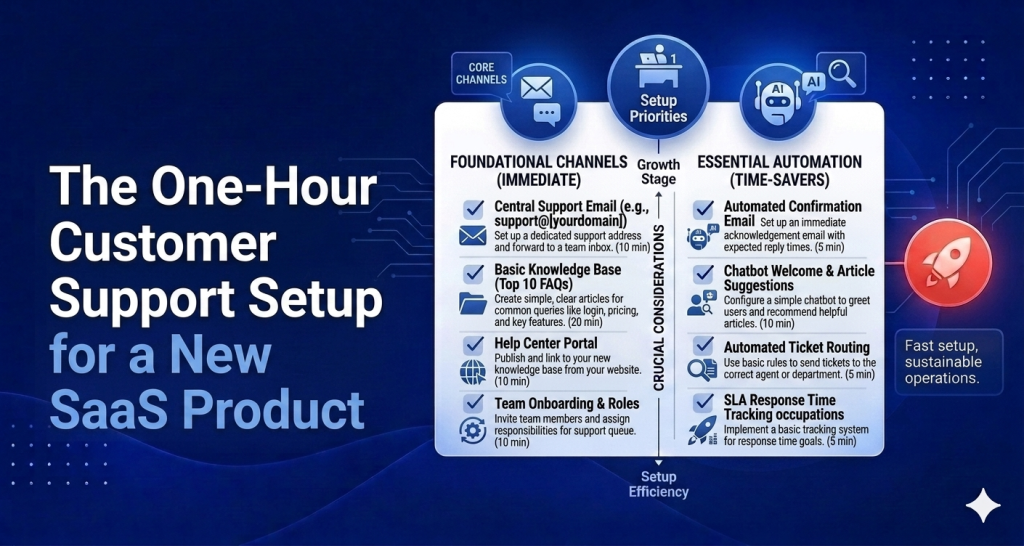
You just shipped your SaaS. Your first users are landing. You have no support setup — no inbox, no help center, no chat widget. This guide is for that exact moment. It’s a step-by-step customer support setup for a new SaaS product that takes one hour to complete and leaves you with everything you actually need.
Why One Hour Is Enough (If You Do It Right)
Most founders overthink support setup. They assume they need a complex ticketing system, a fully documented help center, or an AI trained on hundreds of articles before anything is worth deploying.
None of that is true for a new SaaS product. What you actually need at launch is: somewhere for support emails to go, a way for users to ask questions inside the app, five to ten help articles covering the basics, and an AI that can handle a few common questions automatically. That’s achievable in an hour. And getting it done in an hour beats spending two weeks building the perfect system that never ships.
Here’s the plan.
The 60-Minute Setup Plan
0-10 Minutes: Pick Your Tool and Sign Up
Go to HelpLoom and create a free account. You don’t need a credit card to start. The free plan gives you access to the inbox and help center so you can test everything before you decide to upgrade.
During signup you’ll create your workspace. Pick a name (usually your product name) and set up your support email address — something like support@yourproduct.com if you already have a domain, or you can use the HelpLoom-provided address to get started immediately.
Do not spend time evaluating five different tools right now. Your users are arriving. The best tool is the one that’s set up. You can migrate later if you need to — but in two years of running a SaaS, you almost certainly won’t need to.
Output: HelpLoom account created, support email configured.
10-20 Minutes: Connect Your Support Email and Install the Chat Widget
Two tasks here that can mostly run in parallel.
First, verify your support email. HelpLoom will walk you through the DNS records or email forwarding setup depending on how you want to route support@yourproduct.com. If you use Google Workspace or similar, this is a forwarding rule and takes about five minutes.
Second, copy the chat widget script from your HelpLoom dashboard and paste it into your app’s HTML — specifically into the <head> or before the closing </body> tag. No engineering required. If you built your product on React, HTML, Webflow, WordPress, Shopify, Framer, or Bubble, HelpLoom’s widget works out of the box.
Once the script is in, reload your app in a browser. The chat widget should appear. That’s it.
Output: Support email routing to your shared inbox. Chat widget live in your app.
20-35 Minutes: Write Your First 5 Help Center Articles
Open a new help center article in HelpLoom. Write five articles, roughly three minutes each. Don’t aim for perfection — aim for complete and useful.
Article 1: Getting Started — What does a brand new user do first? Walk through it step by step. Assume they know nothing about your product.
Article 2: Pricing and Plans — What’s included in each plan? When does billing happen? What’s the difference between tiers? Users will ask this before and after signup.
Article 3: How to Do the Main Thing — Your product exists to help people do something specific. Write a clear how-to guide for that core action. This is the highest-value article you’ll ever write.
Article 4: Troubleshooting Common Problems — What do users try and fail at most often? What breaks? Write the fix. Include screenshots if you have five minutes to capture them.
Article 5: How to Cancel or Change Plans — Write this one now, even though it feels wrong. Clear cancellation docs build trust and dramatically reduce confrontational support emails later.
Publish all five. Your help center is live.
Output: Five published help center articles covering the most common questions.
35-50 Minutes: Set Up Your AI Agent With 3 Trained Responses
On HelpLoom’s $59/mo plan, the AI agent trains on your knowledge base automatically. But you’ll also want to manually configure responses for your top three FAQs — the questions you already know are coming.
Start by typing out your three most common questions and their ideal answers in the AI training section. Be specific. Don’t write vague answers — write the exact response you’d want a customer to receive.
For most new SaaS products, the top three are something like:
“Do you have a free plan?” — Answer this completely: yes/no, what it includes, how to upgrade.
“How does [core feature] work?” — Link to the help article you just wrote, plus a one-paragraph summary.
“I can’t log in / I’m having trouble with [X]” — Walk through the troubleshooting steps.
After entering these, test the AI from the widget in your app. Ask it your own questions. See what it says. Adjust any answers that are off.
Output: AI agent live and trained on your three top FAQs.
50-60 Minutes: Test It as a Customer Would
This is the step most founders skip. Don’t skip it.
Open your product in an incognito browser window. Pretend you’re a new user who has never seen it before. Try to find the help center from inside the app. Ask the AI a question. Send a support email to your support address.
Then check your HelpLoom inbox. Did the email show up? Did the AI conversation thread? Does the help center load and display correctly?
Fix anything that’s broken. Check that the chat widget appears on the pages where it should. Confirm the help center URL is something you’d share (HelpLoom includes a sitemap.xml automatically, which helps with SEO from day one).
Output: End-to-end support flow tested and working.
What You Have at the End of the Hour
At the sixty-minute mark, if you’ve followed this, you have:
A shared inbox where all support emails land, with thread tracking and status management
A live chat widget inside your SaaS product
A public help center with five articles covering the most common questions
An AI agent handling your top three FAQs automatically, around the clock
That’s not a placeholder support setup. That’s a real one. It will handle the majority of questions your first hundred users ask without your involvement.
What to Add in Week 2 (Not Day 1)
Don’t try to build everything at once. Here’s what to add after your first week of real user traffic:
More help center articles. You’ll know by now which questions are still hitting your inbox. Write those articles. The goal is to deflect each recurring question into the help center so it never becomes a support email again.
Escalation rules. Configure which AI conversations should escalate to you automatically — billing questions, frustrated users, anything involving account security. HelpLoom handles this as part of the AI plan.
Team members. If you have a co-founder or a contractor helping with support, add them to the workspace. No additional cost — HelpLoom is flat rate with unlimited team members.
Canned responses. For questions you answer the same way every time, create saved replies so you can respond in one click.
None of this belongs in hour one. None of it will matter if your five core articles and AI agent aren’t solid first.
Why HelpLoom Makes the One-Hour Setup Possible
The reason this setup is achievable in sixty minutes is that HelpLoom was designed to be a single tool covering the full support stack — inbox, help center, live chat, and AI agent. There’s no integration work, no third-party connections, no configuration between tools.
At helploom.com, the free plan covers the basics. The $29/mo plan includes unlimited support threads and team access. The $59/mo plan adds the AI agent. All plans are flat rate — no per-agent fees, no per-ticket charges.
Compare that to assembling this stack from pieces: a help desk tool (Zendesk at $55/agent/mo), a help center tool (separate), a chat widget (separate), and AI on top. That’s hundreds of dollars a month and multiple onboarding processes to navigate.
One tool. One hour. One setup.
Start Your One-Hour Support Setup Now
Free to start. No credit card required. The chat widget installs with a copy-paste script.
Start your one-hour support setup at HelpLoom — and have everything running before your next user logs in.
FAQs
Q: Who is this guide for?
People evaluating better customer support systems.
Q: Can AI replace support teams completely?
Usually no. AI handles repetitive questions best, with humans handling escalation.
Need help support tooling? Explore HelpLoom.